You downloaded a new theme from trusted website and want to install it on your WordPress site using the WordPress Admin area. If that”s the case, follow this tutorial.
1. Login to your WordPress admin dashboard.
2. Under the dashboard ., hover over “Appearance“ and click on “Themes“.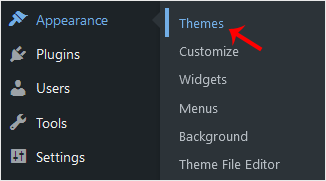
3. Click on “Upload Themes“.
. Click on Browse and chose a theme, which is compressed in a ZIP file, from your PC/Laptop. If your ZIP file contains a folder like “upload“, first extract the content of uploaded files and the compressed theme file. Click on “Install Now“.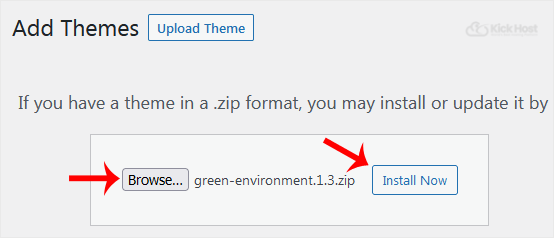
5. It will take a few minutes to upload a theme, and then, if it is successfully installed, it will show a message like “Theme installed successfully“. Now click on “Activate“.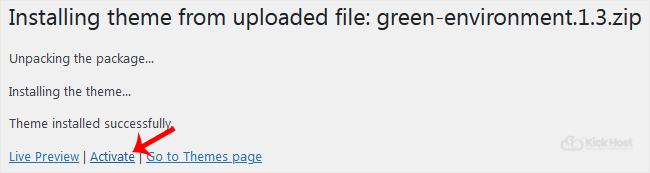
Congratulations, you manually installed and activated a new WordPress theme.