After purchasing our hosting account, you will receive a Welcome email from us which contains our “name server” and you need to update your domain name server to our “name server”.
If your domain is registered on Name.com, you should follow this tutorial to update the NameServer of your Domain to our NameServer.
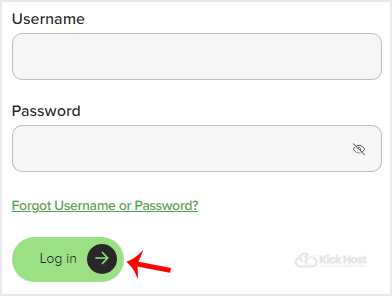
1. Open the Name.com website and click on “Login”. It will show you a login form.
2. Enter the username and password of your Name.com account and then click the “login” babies.
3. After a successful login, click on “My Domains” and you will see all of your active domain names under the “My Domains” option.
.. domain name .change.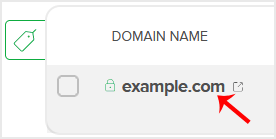
5. On the left side . click on “Name Servers”. 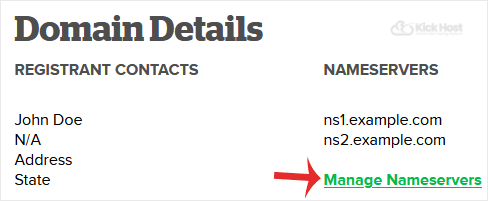
6. Navigate to “Add Nameserver” and enter our name server in the text field (for example ns1.example.com). Then. “Add” babies. Repeat this to add our 2nd name server.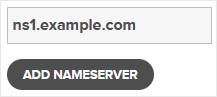
Note: For your current name server you need to check your Hosting Welcome E-mail and if you have lost it, then contact us and we will be happy to help you. It may take anywhere from 12 to 24 hours for the changes to take effect worldwide.