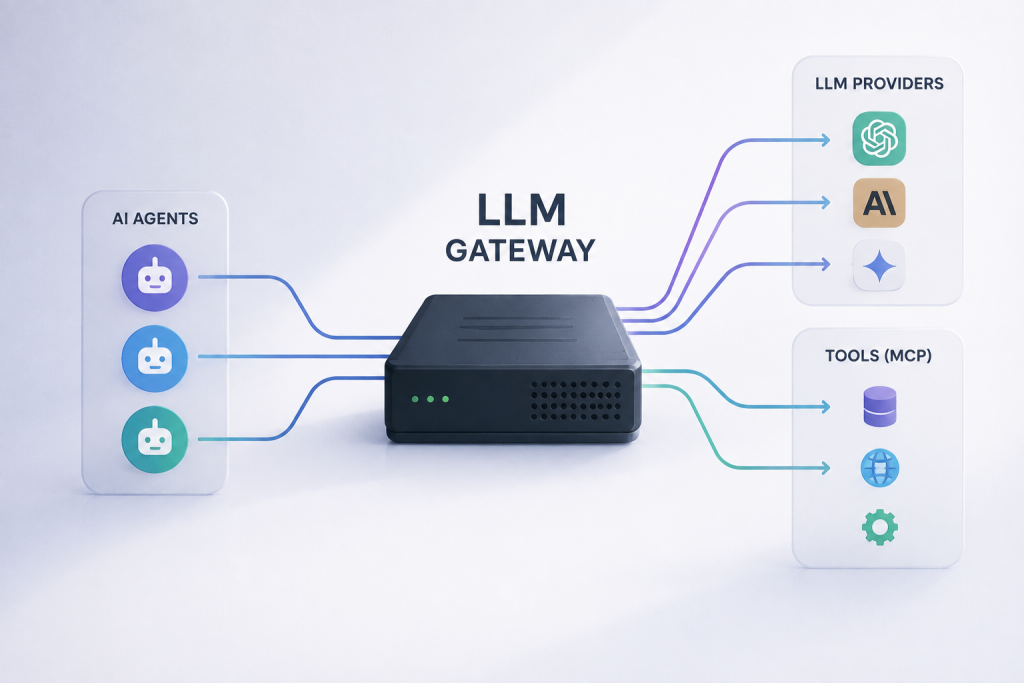
Running several AI agents quickly creates an infrastructure problem. One agent may use OpenAI, another may call Anthropic or Gemini, while others need access to databases, APIs, files or external tools through the Model Context Protocol (MCP). If every application connects directly to every provider, API keys and connection settings soon become scattered across multiple projects.
A self-hosted LLM gateway gives you a cleaner architecture. Instead of allowing every AI agent to communicate directly with model providers, you place a gateway between your applications and the models they use. Your agents communicate with one API endpoint, while the gateway handles provider credentials, model routing, authentication, retries and fallback behaviour.
Run that gateway on your own Virtual Private Server (VPS), and you also control the infrastructure on which the gateway operates. You can combine it with an MCP gateway to give AI agents controlled access to tools without maintaining a separate integration for every agent.
In this tutorial, we’ll build that architecture using LiteLLM as the LLM gateway and Docker MCP Gateway for AI tools. Both can run on the same Linux VPS using Docker, creating a central gateway that your applications and AI agents can use.
What Is a Self-Hosted LLM Gateway?
An LLM gateway is a service positioned between your application and the large language models it uses. Rather than connecting your application directly to OpenAI, Anthropic, Gemini or another provider, your application sends its requests to the gateway.
The architecture looks roughly like this:
AI Agents / Applications
          |
          v
     LLM Gateway
      (LiteLLM)
          |
    +-----+-----+
    |     |     |
    v     v     v
 OpenAI Claude Gemini
The gateway becomes the central point for authentication and model routing. Your applications no longer need separate provider-specific connection logic everywhere they use an LLM.
LiteLLM is particularly useful for this because its proxy provides an OpenAI-compatible interface across more than 100 LLM integrations. That means applications designed around the OpenAI API format can use the LiteLLM endpoint while LiteLLM handles communication with the underlying provider.
This becomes increasingly useful when you operate several AI applications. Instead of updating five applications when an API key changes, for example, you can manage the provider configuration centrally at the gateway.
Why Self-Host the Gateway on a VPS?
You could use a managed AI gateway service, but self-hosting gives you greater control over the gateway layer itself. The VPS becomes infrastructure you control, allowing you to decide how the gateway is exposed, where configuration is stored, which ports are reachable and what other services run alongside it.
For developers building AI applications, a VPS also provides something conventional shared hosting generally cannot: root-level control of the operating environment. You can install Docker, run persistent containers, configure reverse proxies, create private Docker networks and operate background services continuously.
That makes HostGuru VPS Hosting a more appropriate environment for this type of workload than conventional shared web hosting.
It is important, however, to understand what self-hosting does and does not mean. If LiteLLM routes a request to an external model provider such as OpenAI or Anthropic, that request still leaves your VPS and is processed by that provider. Self-hosting the gateway gives you control over the gateway infrastructure; it does not automatically make external model inference local.
If you want inference to remain on infrastructure you control as well, you would need to run a local model using software such as Ollama or another inference server. That requires substantially more RAM and, depending on the model and expected performance, may benefit from GPU infrastructure.
What We’re Going to Build
Our finished architecture will have two main gateway components:
                AI Agents
                    |
          +---------+---------+
          |                   |
          v                   v
    LiteLLM Gateway      MCP Gateway
          |                   |
    +-----+-----+       +-----+------+
    |     |     |       |     |      |
 OpenAI Claude Gemini  Git  APIs  Databases
LiteLLM handles model access. It provides a central API endpoint, stores provider configuration and can route requests between different LLM deployments.
Docker MCP Gateway handles tool access. MCP provides a standard mechanism through which AI applications can interact with external tools and data sources, while the gateway centralises access to multiple MCP servers.
Docker’s MCP Gateway runs MCP servers in isolated containers and provides a single gateway through which clients can access their available tools. It also supports controls for secrets, network access, resource limits and call logging.
Running both services on the same VPS gives you a flexible foundation for building AI agents without exposing every model provider and tool directly to every application.
What You Need Before Starting
For this tutorial, you should have a Linux VPS with root or sudo access, a public IP address and enough memory for Docker plus the gateway containers. You will also need at least one LLM provider API key if you plan to use external models.
You should be comfortable connecting to the server using SSH and running Linux commands. If this is your first VPS deployment, take a server snapshot or backup before making significant configuration changes.
For a gateway-only installation, you do not need the enormous amounts of RAM associated with running an LLM locally. LiteLLM and the gateway infrastructure are routing requests rather than loading a multi-billion-parameter model into memory.
If you intend to add Ollama and run the actual LLM on the same VPS, however, resource requirements increase significantly. In that case, choose your server based primarily on the memory requirements of the models you intend to run.
Step 1: Connect to Your VPS
Connect to the server over SSH:
ssh root@YOUR_SERVER_IP
Replace YOUR_SERVER_IP with the public IP address assigned to your VPS.
Once connected, update the operating system:
apt update && apt upgrade -y
For a production environment, it is generally preferable to create a separate administrative user rather than performing routine work as root.
For example:
adduser aiadmin
usermod -aG sudo aiadmin
You can then configure SSH keys for that account and disable password-based root access once you have confirmed that key authentication works.
Step 2: Install Docker
Our gateway services will run as Docker containers. Containerising them keeps the applications and their dependencies separated from the underlying operating system and makes upgrades and recovery considerably easier.
Install Docker using Docker’s official installation instructions for your Linux distribution.
View the official Docker Engine installation guide.
After installation, confirm Docker is running:
docker --version
docker compose version
You can also verify the service:
systemctl status docker
If Docker is active, create a directory for the AI gateway configuration:
mkdir -p /opt/ai-gateway
cd /opt/ai-gateway
Keeping the gateway configuration in its own directory makes the deployment easier to maintain and back up.
Step 3: Create the LiteLLM Gateway
LiteLLM will act as our model gateway.
Instead of your AI applications connecting independently to every LLM provider, they will connect to LiteLLM. LiteLLM then routes the request to the model configured for that endpoint.
Create a configuration file:
nano /opt/ai-gateway/litellm_config.yaml
A simple configuration could look like this:
model_list:
  - model_name: primary
    litellm_params:
      model: openai/YOUR_MODEL_NAME
      api_key: os.environ/OPENAI_API_KEY

  - model_name: secondary
    litellm_params:
      model: anthropic/YOUR_MODEL_NAME
      api_key: os.environ/ANTHROPIC_API_KEY

litellm_settings:
  master_key: os.environ/LITELLM_MASTER_KEY
Replace the example model identifiers with models currently supported by your providers.
Notice that the provider API keys are not written directly into the YAML file. Instead, LiteLLM reads them from environment variables. This makes it easier to keep credentials out of configuration files that might later be committed to Git.
Now create the environment file:
nano /opt/ai-gateway/.env
Add your credentials:
OPENAI_API_KEY=your_openai_key_here
ANTHROPIC_API_KEY=your_anthropic_key_here
LITELLM_MASTER_KEY=replace_with_a_long_random_secret
Protect the file:
chmod 600 /opt/ai-gateway/.env
The master key should be a strong, randomly generated secret rather than something memorable.
Step 4: Run LiteLLM with Docker
Now create a Docker Compose file:
nano /opt/ai-gateway/docker-compose.yml
Add:
services:
  litellm:
    image: docker.litellm.ai/berriai/litellm:main-latest
    container_name: litellm
    restart: unless-stopped
    env_file:
      - .env
    volumes:
      - ./litellm_config.yaml:/app/config.yaml:ro
    command:
      - "--config"
      - "/app/config.yaml"
    ports:
      - "127.0.0.1:4000:4000"
Notice that port 4000 is bound to 127.0.0.1 rather than directly to the VPS’s public interface.
That is deliberate.
We do not want the raw LiteLLM service exposed openly to the internet. Later, a reverse proxy can provide HTTPS access to the gateway while the container itself remains accessible only locally.
Start the service:
cd /opt/ai-gateway
docker compose up -d
Check its status:
docker compose ps
And inspect the logs if necessary:
docker compose logs -f litellm
If the service starts successfully, LiteLLM should now be listening locally on port 4000.
Step 5: Test Your LLM Gateway
Before adding a domain or reverse proxy, test the gateway locally from the VPS.
For example:
curl http://127.0.0.1:4000/v1/chat/completions \
  -H "Authorization: Bearer YOUR_LITELLM_MASTER_KEY" \
  -H "Content-Type: application/json" \
  -d '{
    "model": "primary",
    "messages": [
      {
        "role": "user",
        "content": "Reply with: gateway working"
      }
    ]
  }'
If the provider configuration and credentials are correct, LiteLLM should route the request to your configured model and return the response through the gateway.
At this point, your application no longer needs to communicate directly with the underlying provider.
Instead of:
Application → OpenAI
Application → Anthropic
Application → Gemini
you can use:
Application → LiteLLM → Selected Provider
That is the fundamental value of the gateway architecture.
Step 6: Add Model Fallbacks
Centralised model access becomes considerably more useful when more than one deployment is available.
Suppose your primary model reaches a provider rate limit or becomes temporarily unavailable. Rather than writing fallback logic into every AI agent, you can configure that behaviour at the routing layer.
LiteLLM supports routing, retries and fallback behaviour across deployments. This allows the gateway to attempt another configured deployment when the preferred one cannot successfully process the request.
A conceptual configuration might use:
router_settings:
  fallbacks:
    - primary:
        - secondary
The exact routing configuration should be checked against the current LiteLLM documentation because gateway features and configuration syntax continue to evolve.
See the current LiteLLM documentation.
This centralisation is particularly valuable when several AI agents use the same infrastructure. Change the routing policy once at the gateway instead of updating every application individually.
Step 7: Add an MCP Gateway for AI Agent Tools
LLMs provide reasoning and language generation, but useful AI agents often need to do something.
An agent might need to query a database, inspect a repository, retrieve a document, communicate with an API or interact with another service.
This is where the Model Context Protocol (MCP) becomes relevant.
MCP provides a standard way for AI applications to communicate with tools and external data sources. Instead of writing a completely different integration mechanism for every AI client, MCP gives compatible applications a common protocol.
Docker’s open-source MCP Gateway adds another layer by allowing multiple containerised MCP servers to be managed behind a central gateway. Docker’s implementation can manage server lifecycle, tool discovery, credentials, network restrictions and logging.
The official project is available here:
The exact installation procedure changes as the project develops, so for production deployments you should follow the current Docker documentation rather than copying an old binary or container command from a tutorial.
Once installed, the gateway can be started with commands such as:
docker mcp gateway run
or, when you need a network transport:
docker mcp gateway run --port 8080 --transport streaming
You can also specify which MCP servers and tools should be exposed through the gateway.
The architecture now becomes:
                  AI Agent
                     |
        +------------+------------+
        |                         |
        v                         v
   LiteLLM Gateway          MCP Gateway
        |                         |
   LLM Providers              MCP Tools
Your model access and tool access are now centralised instead of being distributed throughout every agent configuration.
Step 8: Put the Gateway Behind HTTPS
If AI applications outside the VPS need to communicate with LiteLLM, don’t simply open port 4000 to the entire internet.
Use a domain such as:
ai.example.com
Point its DNS record to the VPS and place a reverse proxy such as NGINX or Caddy in front of LiteLLM.
The public traffic path then becomes:
AI Application
      |
    HTTPS
      |
      v
Reverse Proxy
      |
      v
127.0.0.1:4000
      |
      v
   LiteLLM
This keeps the application port off the public network while allowing the reverse proxy to terminate TLS and forward authorised HTTPS traffic to LiteLLM.
For NGINX, a basic proxy configuration might resemble:
server {
    listen 443 ssl;
    server_name ai.example.com;

    location / {
        proxy_pass http://127.0.0.1:4000;
        proxy_http_version 1.1;

        proxy_set_header Host $host;
        proxy_set_header X-Real-IP $remote_addr;
        proxy_set_header X-Forwarded-For $proxy_add_x_forwarded_for;
        proxy_set_header X-Forwarded-Proto $scheme;
    }
}
You would then configure a valid TLS certificate for the domain.
Do not expose an unauthenticated AI gateway publicly. Even if the gateway itself requires an API key, firewall rules, HTTPS, strong credentials and sensible rate limiting should still be part of the production design.
Step 9: Connect Your AI Agent to LiteLLM
One of LiteLLM’s biggest advantages is its OpenAI-compatible interface.
An application using an OpenAI-compatible SDK can point its base URL at your gateway rather than directly at the provider.
For example:
from openai import OpenAI

client = OpenAI(
    api_key="YOUR_GATEWAY_KEY",
    base_url="https://ai.example.com"
)

response = client.chat.completions.create(
    model="primary",
    messages=[
        {
            "role": "user",
            "content": "Explain what this server log means."
        }
    ]
)

print(response.choices[0].message.content)
Your application communicates with the gateway, while LiteLLM decides which configured provider receives the model request.
That separation becomes extremely useful when you later change providers, rotate credentials or introduce routing policies.
Security Considerations for a Self-Hosted AI Gateway
A gateway centralises valuable credentials, so securing it should be treated as part of the deployment rather than something to add later.
Do not hardcode provider API keys into agent source code or commit them to public Git repositories. Keep secrets in protected environment files, Docker secrets or another suitable secrets-management system, and restrict access to those files.
The VPS firewall should expose only the ports that are genuinely required. In a typical deployment, that means SSH and HTTPS rather than the internal LiteLLM or MCP service ports.
You should also keep Docker, the operating system and gateway images updated. Monitor logs for unexpected authentication failures, unusually high request volumes and other signs of abuse.
MCP tools deserve additional attention because tools can potentially perform actions rather than simply generate text. Only expose the MCP servers and capabilities that an agent genuinely needs. Docker MCP Gateway includes mechanisms for restricting tools, network access and container resources, which can help reduce the blast radius of an incorrectly configured or compromised tool.
How Much VPS RAM Do You Need?
The resource requirements depend heavily on whether the VPS is merely routing AI requests or actually running the models.
For a gateway-only deployment, LiteLLM and an MCP gateway are relatively modest compared with local inference. A VPS with several CPU cores and a reasonable amount of RAM can provide ample room for the gateways, Docker and the underlying operating system for a small deployment.
The calculation changes substantially when you add local inference. A model running through Ollama or another inference engine must be loaded into memory, and larger models can require many gigabytes of RAM. Concurrency increases the requirement further.
A useful distinction is:
| Deployment | Main Resource Concern |
|---|---|
| LiteLLM gateway only | Relatively light CPU/RAM requirements |
| LiteLLM + MCP tools | RAM increases with the number and type of MCP servers |
| Gateway + local Ollama model | Model memory becomes the major requirement |
| Multiple local models / high concurrency | High RAM and potentially GPU resources |
Do not choose a VPS for local AI inference based solely on the fact that it has many CPU cores. Check the memory requirements of the specific model and quantisation you intend to use before ordering the server.
Why Use HostGuru VPS Hosting for an AI Gateway?
An AI gateway needs a server environment where you can control the software stack. That makes VPS infrastructure a natural fit because you can install Docker, configure firewall rules, operate persistent services, deploy reverse proxies and choose how your applications communicate with the gateway.
HostGuru VPS Hosting gives developers an environment suitable for running Docker-based applications, APIs, development services and self-hosted infrastructure. Instead of trying to fit a persistent AI service into conventional shared hosting, you have a virtual server on which you control the operating environment.
The correct VPS size depends on what you intend to run. If external providers handle the actual LLM inference, the gateway itself can start relatively small. If you intend to add local models, databases, vector stores or several MCP services, choose additional RAM and storage accordingly.
This approach also gives you room to expand the architecture over time. The same VPS can potentially host your reverse proxy, gateway services and supporting application components, while larger deployments can separate these services across multiple servers as traffic and resource requirements grow.
When Does a Self-Hosted LLM Gateway Make Sense?
Not every AI project needs a gateway. If you have one small application calling one model provider, connecting directly to the provider API may be perfectly reasonable.
A gateway becomes more useful when your infrastructure starts becoming more complicated. You may have several agents, multiple model providers, different API keys, fallback requirements or multiple applications that should follow the same model-routing policy.
At that point, centralising model access gives you a cleaner architecture:
Without Gateway:

Agent A → OpenAI
Agent A → Anthropic
Agent B → OpenAI
Agent B → Gemini
Agent C → Anthropic

With Gateway:

Agent A ─┐
Agent B ─┼→ LLM Gateway → Model Providers
Agent C ─┘
Add MCP and the same principle can be applied to tools. Instead of every agent separately managing database, Git, filesystem and API integrations, compatible tools can be exposed through a controlled gateway.
The result is an AI infrastructure layer that is easier to manage as the number of agents grows.
Frequently Asked Questions
What is an LLM gateway?
An LLM gateway is a service positioned between an application and one or more large language model providers. Applications send model requests to the gateway, which can handle authentication, routing, logging, retries and provider selection before forwarding the request to the appropriate LLM.
What is LiteLLM?
LiteLLM is an open-source platform that provides a unified interface for many LLM providers. Its proxy server can operate as a central LLM gateway with authentication, routing, cost tracking, rate limiting and other management capabilities while exposing an OpenAI-compatible API.
Can I run LiteLLM on a VPS?
Yes. LiteLLM can run on a Linux VPS using Docker or other supported installation methods. Docker is particularly convenient because the gateway and its dependencies remain packaged inside a container and can be configured to restart automatically after a server reboot.
What is an MCP gateway?
An MCP gateway sits between MCP clients and one or more MCP servers. It provides a central point through which AI applications can discover and access tools. Docker MCP Gateway can run MCP servers in isolated containers and centrally manage their lifecycle, configuration, credentials and access.
Can LiteLLM and an MCP gateway run on the same VPS?
Yes. They perform different roles and can run on the same VPS. LiteLLM handles access to LLM providers, while the MCP gateway handles access to tools. Docker networking can be used to keep internal communication between services private.
Does self-hosting LiteLLM mean my prompts stay on my VPS?
Not necessarily. If LiteLLM routes the request to an external LLM provider, the request must still be transmitted to that provider for inference. To keep model inference on infrastructure you control, you would also need to host the model locally or on infrastructure under your control.
Can I use Ollama with an LLM gateway?
Yes. LiteLLM supports Ollama among its model integrations. This makes it possible to combine externally hosted models and locally hosted models behind a common gateway, subject to the resources available on your server.
How much RAM do I need?
Gateway services themselves require far less memory than running an LLM locally. If you add Ollama or another local inference engine, RAM requirements depend primarily on the model, quantisation and concurrency. Always size the VPS according to the model you intend to run rather than relying on a generic RAM recommendation.
Build Your Own AI Infrastructure on a VPS
As AI applications become more complex, infrastructure that works for one API integration can become difficult to maintain across multiple agents. A self-hosted gateway gives developers a central place to manage model access, credentials and routing, while an MCP gateway can provide a similarly structured approach to the tools those agents use.
LiteLLM and Docker MCP Gateway make it possible to build this architecture using open-source software and standard Docker infrastructure. Start with the gateway services and external LLM providers, then add additional models, tools and services as your application requires them.
Most importantly, size the infrastructure according to what the VPS will actually do. Routing requests to external LLM providers is relatively lightweight; running the models themselves is a completely different workload.
If you’re ready to experiment with self-hosted AI agents, APIs, Docker services or an LLM gateway, start with a VPS that gives you full control of the operating environment.
Explore HostGuru VPS Hosting →
Need hosting for a conventional website rather than a server application? Explore HostGuru Linux Shared Hosting or compare HostGuru hosting solutions.