
Have a domain name that you registered somewhere else? Maybe you bought it from KickHost, TrueHost, GoDaddy, Namecheap, Name.com or another registrar, but you now want to manage its DNS through HostGuru using Cloudflare.
You do not need to transfer the domain to HostGuru to do that.
As a Cloudflare Agency Partner, HostGuru allows you to activate Cloudflare DNS for an existing domain and manage it through your HostGuru account while the domain itself remains registered with your current registrar.
The process is simple. You add the domain to HostGuru’s Cloudflare DNS service, activate it, copy the Cloudflare nameservers assigned to your domain, and then update those nameservers at the company where the domain is currently registered.
In this guide, we will take you through the process step by step.
How Does It Work?
Your domain registration and your DNS management do not have to be with the same company.
For example, you could have registered your domain with another registrar but still use Cloudflare to manage the DNS records that control where your website, email and other services point.
With HostGuru, the process is:
- Order the free Cloudflare DNS – Free service.
- Enter the domain you already own.
- Activate the Cloudflare service if activation is required.
- Copy the two Cloudflare nameservers shown in your HostGuru dashboard.
- Replace the current nameservers at your existing registrar.
- Once the change is detected, manage your DNS through HostGuru.
Your domain remains registered with the original registrar. You are simply changing the authoritative DNS provider.
Step 1: Order the Free Cloudflare DNS Service
Start by logging in to your HostGuru client area.
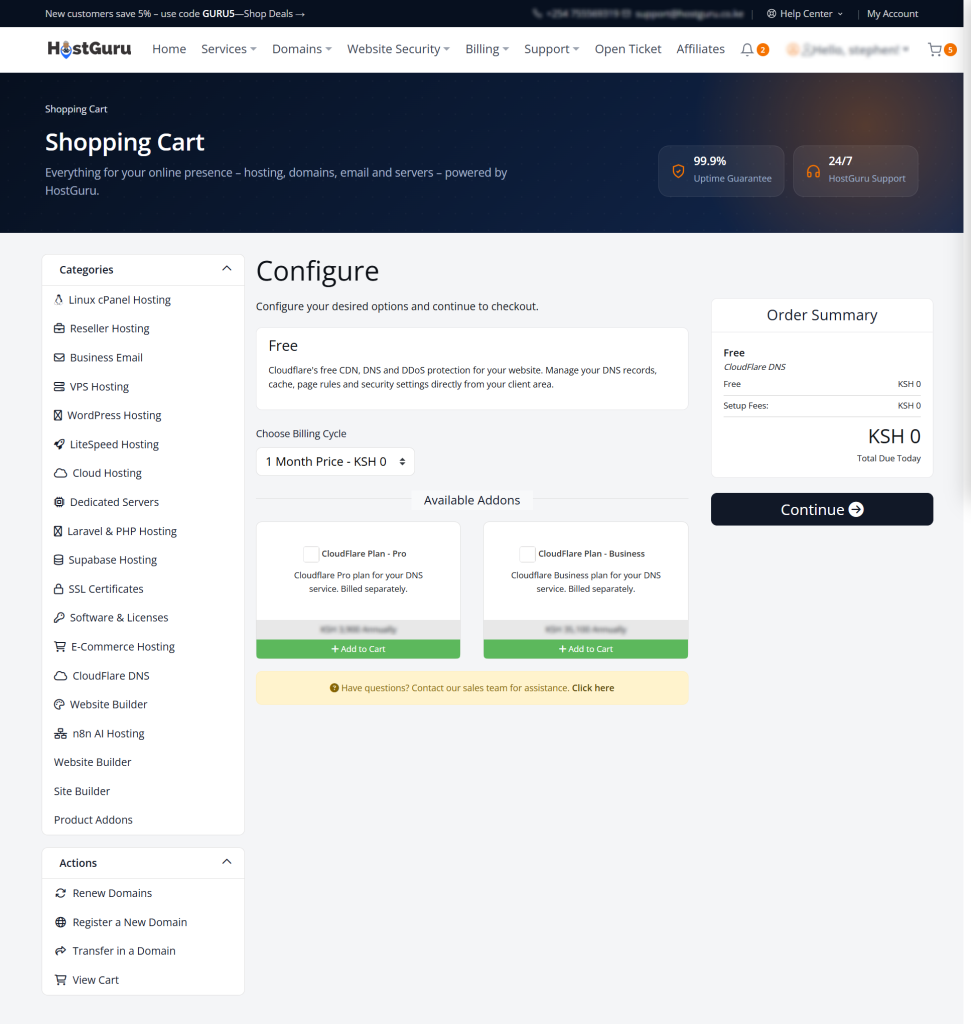
From the ordering or store section, locate the Cloudflare DNS service and click Order Now.
When asked for a domain name, enter the domain that you already own.
For example:
mywebsite.co.ke
You do not need to transfer the domain to HostGuru. Simply enter the domain name you want to connect to Cloudflare.
Select the Cloudflare DNS – Free plan and continue through checkout.
The Free plan costs KSh 0 / $0.00, so there is nothing to pay.
Once the order is complete, the new service should appear under:
Services → My Services
Step 2: Activate Cloudflare DNS
Go to:
Services → My Services
and open your Cloudflare DNS – Free service.
In many cases the service will activate automatically and you will be taken directly to your Cloudflare management dashboard.
If you instead see an activation page, click the Activate Free button.
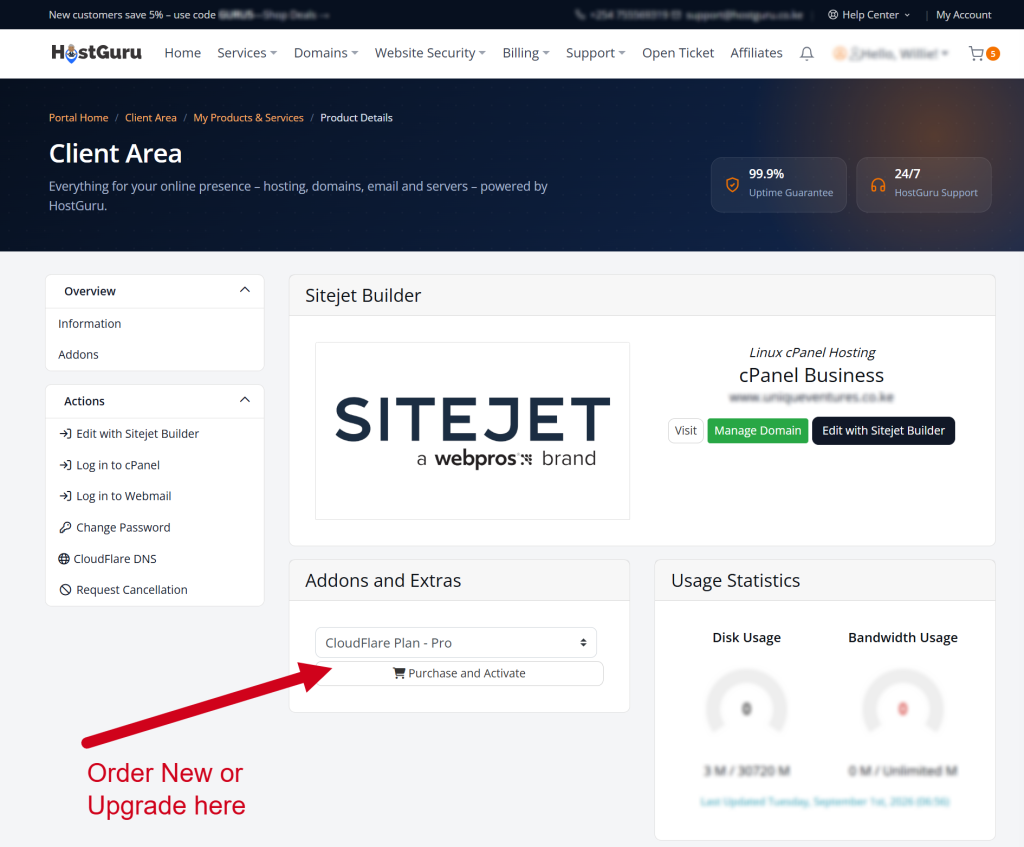
HostGuru will then provision the Cloudflare service for your domain.
Once activation is complete, you should see your domain’s Cloudflare dashboard and zone information.
Step 3: Find Your Cloudflare Nameservers
This is the most important part when your domain is registered outside HostGuru.
Because the domain is registered with another company, HostGuru cannot automatically change the nameservers held by that registrar.
You therefore need to update them manually.
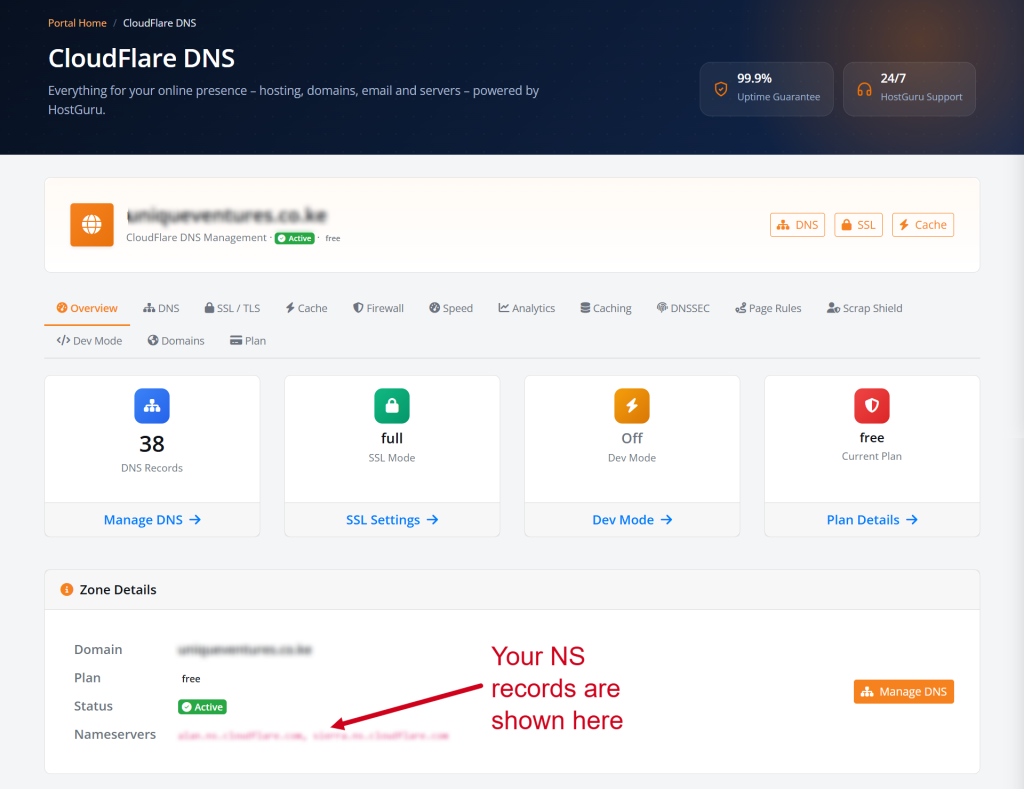
On the Overview page of your HostGuru Cloudflare dashboard, look for a yellow notification labelled:
Action Required: Update Nameservers
The message will explain that your domain is not registered through the HostGuru system and that the nameservers could not be updated automatically.
It will also display the exact two Cloudflare nameservers assigned to your domain.
They will normally look similar to this:
example1.ns.cloudflare.com
example2.ns.cloudflare.com
Your actual values will be different, so always copy the nameservers shown in your own HostGuru dashboard.
Before You Change the Nameservers
Before replacing the nameservers at your registrar, check that the important DNS records for your website and email are present in the new Cloudflare DNS zone.
Pay particular attention to:
- A records that point your domain to your web server
- AAAA records if your server uses IPv6
- CNAME records used by subdomains and other services
- MX records used for email delivery
- TXT records used for SPF, DKIM, verification and other services
This is important because once the Cloudflare nameservers become authoritative, the DNS records stored at your previous provider will no longer control the domain.
Cloudflare also recommends reviewing the DNS records in your zone before switching nameservers. You can read more in the official Cloudflare DNS setup documentation.
Step 4: Change the Nameservers at Your Current Registrar
Now log in to the company where you originally registered the domain.
This could be GoDaddy, Namecheap, Name.com, another Kenyan registrar or any other domain provider.
Open the domain’s Nameservers, DNS or Domain Management settings.
Choose the option to use custom nameservers, then replace the existing nameservers with the two Cloudflare nameservers shown in your HostGuru dashboard.
The general process is:
- Copy the two Cloudflare nameservers from HostGuru.
- Log in to your current domain registrar.
- Open the nameserver settings for the domain.
- Select custom nameservers.
- Remove the existing nameserver values.
- Enter the two Cloudflare nameservers assigned to your domain.
- Save the changes.
You should not copy nameservers from another website or from somebody else’s Cloudflare account.
Always use the exact values assigned to your own domain.
If you need more detailed instructions, read our How to Point Your Domain’s Nameservers to Cloudflare guide.
How Long Does the Nameserver Change Take?
After saving the new nameservers, the change may not appear everywhere immediately.
In many cases the update is detected within a few hours, although it can sometimes take longer depending on the registrar and DNS caching.
You can return to your HostGuru Cloudflare dashboard to check the status.
Once Cloudflare detects that the domain is using the assigned nameservers, the Action Required: Update Nameservers notice should disappear.
Cloudflare explains the nameserver update process in more detail in its official nameserver documentation.
Step 5: Manage Your DNS From HostGuru
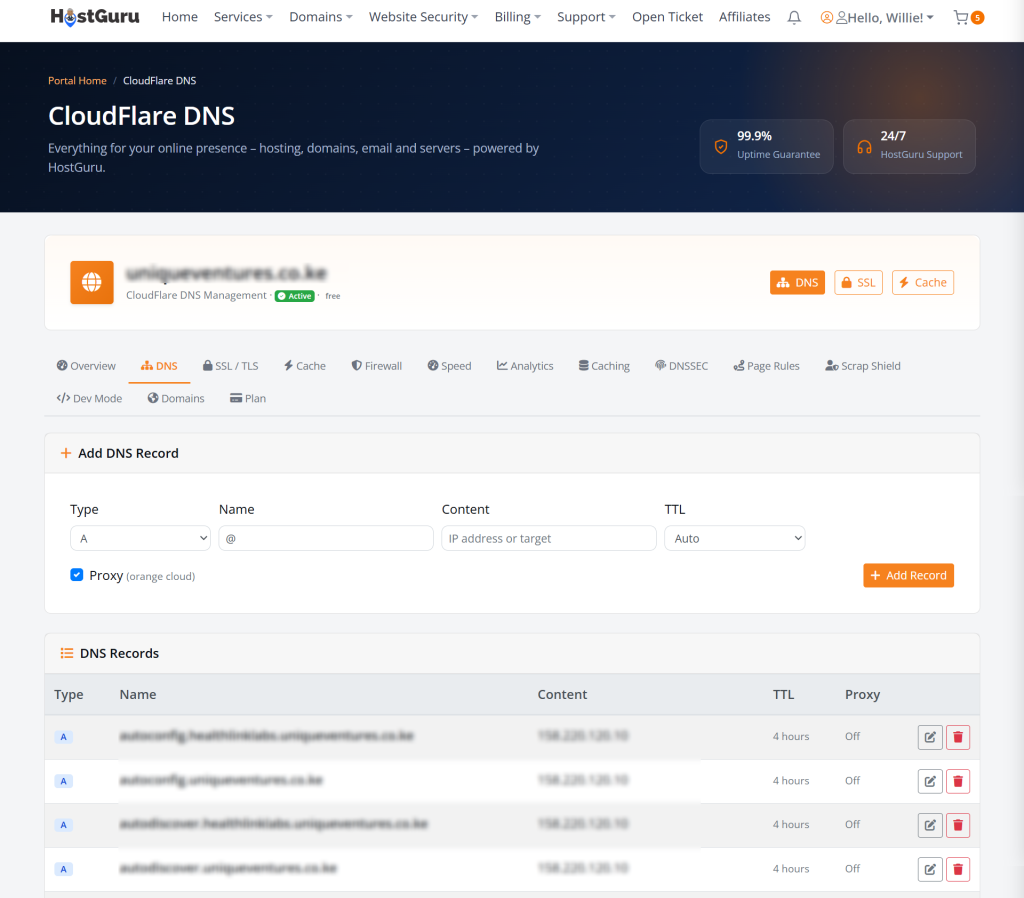
Once the domain is using the Cloudflare nameservers, you can manage its DNS through your HostGuru Cloudflare dashboard.
This is where you can create and edit records such as:
- A records
- AAAA records
- CNAME records
- MX records
- TXT records
An A record, for example, can point your domain to your web hosting server, while MX records tell other mail servers where email for your domain should be delivered.
If you are not familiar with these records, read our How to Manage Your Website’s DNS Records guide.
Does Using Cloudflare DNS Mean I Have Transferred My Domain?
No.
Changing your nameservers does not transfer your domain registration.
Your registrar remains responsible for things such as:
- Domain renewal
- Domain ownership details
- Transfer locks
- Authorisation or EPP codes
- Registration contact information
Cloudflare simply becomes responsible for answering DNS queries for the domain.
If you would prefer to keep your domain registration, DNS and hosting under one provider, you can also register or transfer your domain through HostGuru.
Will My Website Go Down When I Change the Nameservers?
Normally, it should not.
The main risk comes from missing DNS records.
Suppose your website currently points to your hosting server using an A record at your old DNS provider.
If that A record does not exist in the new Cloudflare zone when the nameserver change takes effect, visitors may no longer reach the website.
The same principle applies to email and other services.
That is why checking your DNS records before the switch is so important.
Will Changing Nameservers Affect My Email?
It can if the required email records are missing.
Business email normally relies on MX records, and many mail systems also use TXT records for technologies such as SPF and DKIM.
If these records are present in the new DNS zone, changing nameservers should not normally interrupt the email service.
If they are missing, email delivery may fail after the new nameservers become authoritative.
Can I Use HostGuru Cloudflare DNS if My Website Is Hosted Somewhere Else?
Yes.
Your domain registrar, DNS provider and web hosting provider can all be different companies.
For example, you could have:
- Your domain registered with one registrar
- Your DNS managed through HostGuru and Cloudflare
- Your website hosted on another server
You would simply create the appropriate DNS records in HostGuru to point the domain to the server where your website is hosted.
Of course, you can also host the website with HostGuru and keep everything under one account.
If you are comparing hosting options, our guide to web hosting costs in Kenya explains how hosting, domains, email and other website costs fit together.
Can I Use Cloudflare With a .co.ke Domain?
Yes.
Cloudflare DNS works independently of whether your domain ends in .co.ke, .com, .ke, .org or another supported extension.
A domain such as:
yourbusiness.co.ke
can use Cloudflare in exactly the same way as:
yourbusiness.com
If you are still deciding which extension suits your business, read our .co.ke vs .com guide for Kenyan businesses.
Do I Need to Transfer My Domain to HostGuru?
No.
This is one of the main advantages of this setup.
If you are happy with your existing registrar, you can leave the domain there and simply use the Cloudflare DNS service through HostGuru.
You only need access to the registrar account so that you can replace the nameservers.
If you no longer remember where the domain was registered, you can use the HostGuru WHOIS Lookup Tool to check information about the domain, including its registrar and current nameservers where available.
Frequently Asked Questions
Can I add a domain registered elsewhere to HostGuru Cloudflare DNS?
Yes. The domain does not need to be registered with HostGuru. Add the existing domain to the Cloudflare DNS service, then update its nameservers at the current registrar.
Do I need to pay for the Cloudflare DNS Free plan?
No. The Cloudflare DNS – Free service costs KSh 0 / $0.00.
Why does HostGuru ask me to update the nameservers manually?
If your domain is registered with another registrar, HostGuru does not control the nameserver settings at that company. You therefore need to log in to the registrar account and change them yourself.
Where can I find my Cloudflare nameservers?
Open the Cloudflare DNS service in your HostGuru client area. The assigned nameservers are shown in the Action Required: Update Nameservers notice and within the zone information.
Can I use the same Cloudflare nameservers as another domain?
Do not assume so. Always use the exact nameservers displayed for the domain in your HostGuru dashboard.
How long will it take before Cloudflare detects the new nameservers?
It is often detected within a few hours, although the exact timing depends on the registrar and DNS caching.
Can changing nameservers affect my email?
Yes, if your MX or other email-related DNS records are missing from the new Cloudflare DNS zone. Check these records before completing the change.
Can I keep my domain at GoDaddy or Namecheap and still use HostGuru Cloudflare DNS?
Yes. The domain can remain with your existing registrar while its DNS is managed through HostGuru and Cloudflare.
Manage Your Domain With Cloudflare Through HostGuru
You do not need to move your domain just because you want to use Cloudflare.
With HostGuru, you can keep the domain registered with your existing provider while managing its Cloudflare DNS configuration through your HostGuru account.
As a Cloudflare Agency Partner, HostGuru makes it easier to bring your domain, DNS and hosting services together without forcing you to transfer a domain that you would prefer to keep elsewhere.
If you need help connecting your domain, open a support ticket through your HostGuru client area and tell us the domain you are working with and what you are seeing.
Already considering moving the registration as well? Explore HostGuru Domain Registration and Transfer Services →
Note: DNS settings, Cloudflare features and registrar interfaces can change over time. Always use the nameservers displayed in your HostGuru dashboard for the specific domain you are configuring.